Purenote enables you to customize your FrontPage Main Banner. which consists of two sections Slider and Timeline.
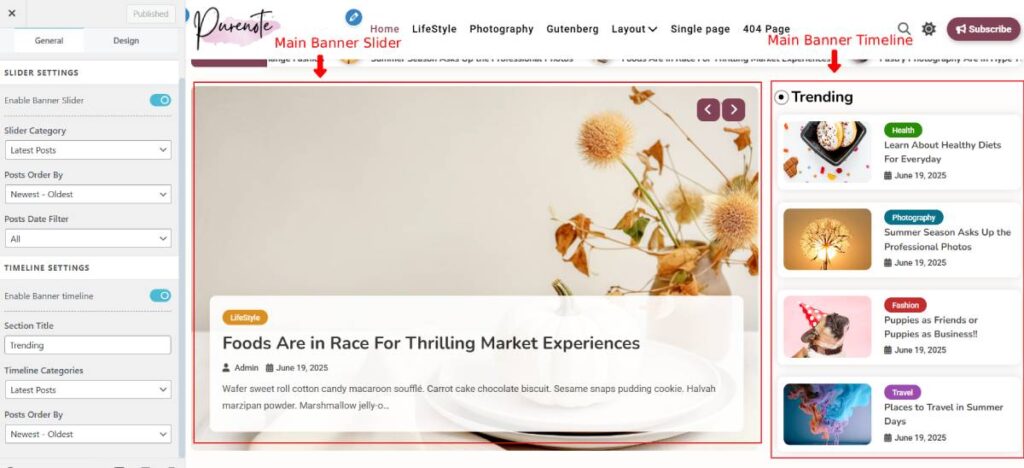
To customize these two sections:
- Go to your WordPress Dashboard and then go to Appearance → Customize → FrontPage Settings
- Look for Main Banner from the given options. There you have two sections; Slider Settings at the top and Timeline Settings at the bottom.
Slider Settings
- Go to Slider Settings, choose your categories. (Posts from that category will be displayed in the Slider of the FrontPage.)
- Choose your Post Order depending on how you want to display the posts.
- Select the Post Date Filter if you want posts of particular dates to be displayed on the slider.
Timeline Settings
- In Timeline Settings (which appears as sidebar on the right hand side of the slider), you first have to enable it by clicking on the ‘Enable Banner Timeline‘ toggle option.
- Then, choose your Timeline section title like Trending, Latest or any other of your preferences.
- Similar to that of Slider, choose your Categories for the post of it to be displayed on the Timeline section.
- Choose the order in which you want to display your Timeline section posts
Click on Publish button to save your changes.