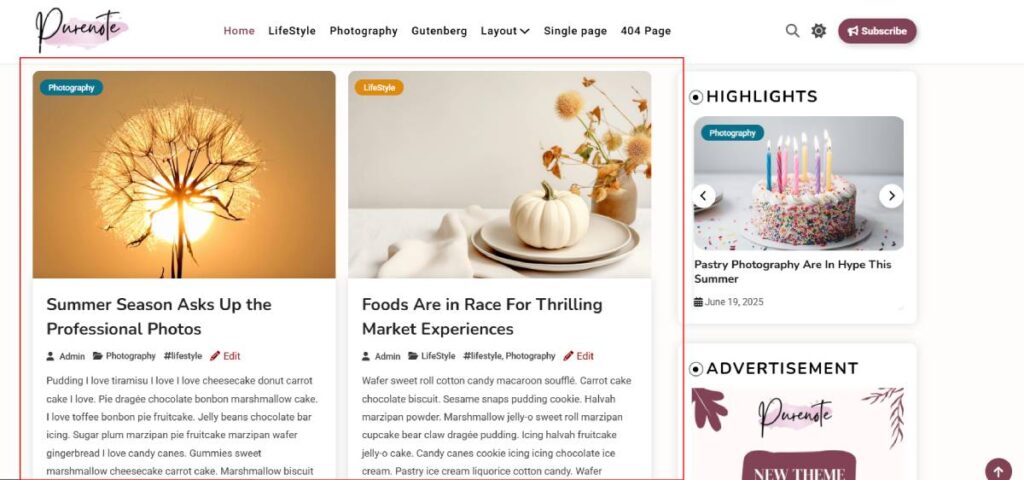
Purenote efficiently allows you customize and design your Archive Pages as per your preferences.
- Go to your WordPress Dashboard and look for Appearance → Customize → Innerpage Settings
- Navigate to Archive Pages option, where you’ll find three different layout options for your Archive Page.
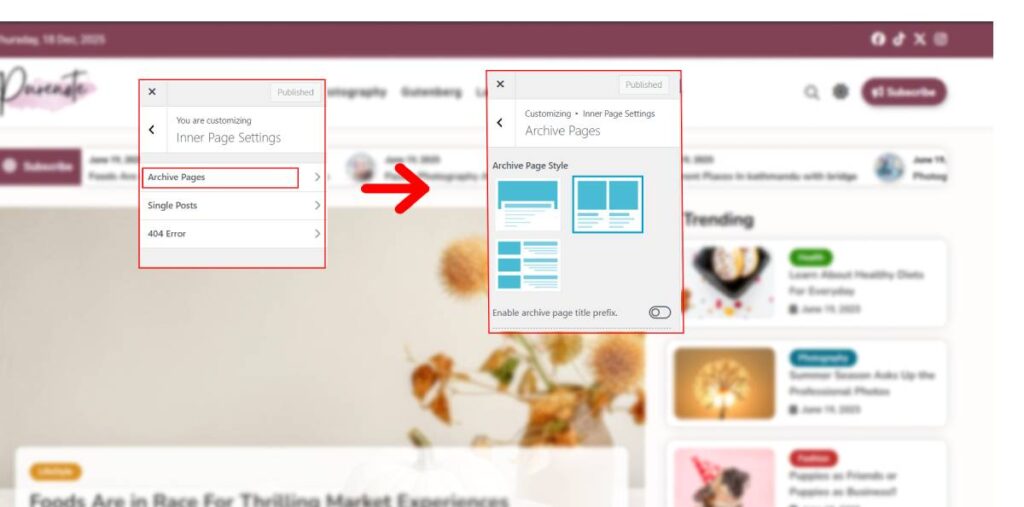
- Choose one given layouts from the given option as per your preferences.
- Toggle on the ‘Enable archive page title prefix‘ option, if you want page prefix on your archive page title.
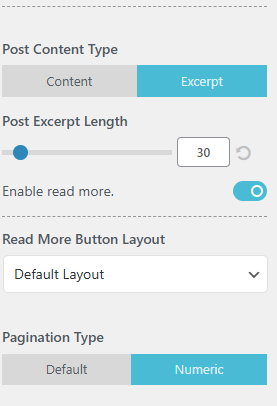
- Choose Post Content Type for your archive page; either to Content or Excerpt and adjust the slider to adjust the length of the Excerpt (if you’ve chosen that option)(Default Length is 30)
- Enable or Disable Read More button for the page as per your preference and choose one of the layout fro the drop-down menu below if you’ve enabled it.
- Choose the pagination type from the given options
Design and Re-order your Archive Page
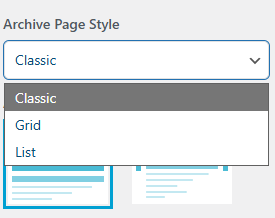
In Purenote Pro, you will have total of 6 layout options to choose from. Two for each Classic, Grid and List, choose one as per your preference.
In order to Design, you will have the option to re-order Post and Meta Elements
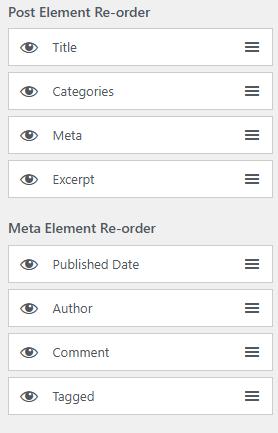
- Drag up and down each elements to re-order it as per your preferences.
- Click on ‘Publish‘ icon to save your changes