This feature is available on Purenote Pro only. Purchase the Premium edition of Purenote to get access to this feature.
Purenote Pro enables you to enables and deeply customize related post section for your website.
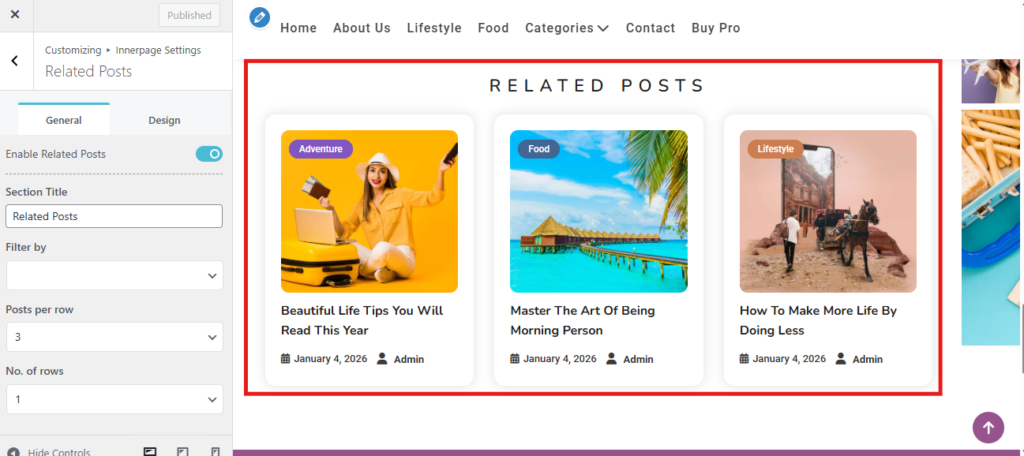
- Go to your WordPress Dashboard and look for Related Posts in Innerpage Settings from the customizer (Appearance → Customize)
- Make sure that you have enabled ‘Enable Related Posts‘ toggle option at the top.
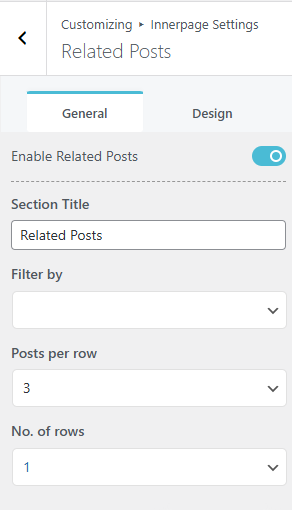
- Add your own custom Section title in the text box below.
- Filter by option enables you to filter the posts in Related Post section by either Tags or Categories of your website.
- You can customize the amount of post in the section by adjusting Post per row drop-down menu below. (You can add up to 4 posts in a row)
- Determine the number of rows you will be required for the Related post section and adjust from the drop-down menu below accordingly. (You can add up to 4 rows).
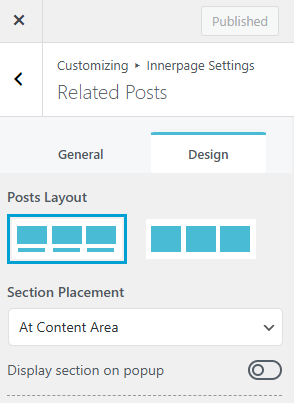
- Design Tab lets you choose the Layouts for Related Post sections.
- Choose the placement area for the Related post, either at At Content Area or After the Content Area from the drop-down menu below layout options.
- You can also determine whether you want to display the section on popup or not by enabling or disabling the Display section on popup toggle option.
- Click on ‘Publish‘ button to save your changes.