In content-rich websites, we find long-scrolling pages where adding Scroll Top smoothly navigates the script, which improves the user experience.
To do so,
- Log in to your WordPress dashboard, then go to Appearance → Customize.
- Then click on General Settings, then select Scroll Top.
- Click on the Enable Scroll Top toggle option available at the top panel on your site.
- Then choose the appropriate arrow from the Arrow Icon.
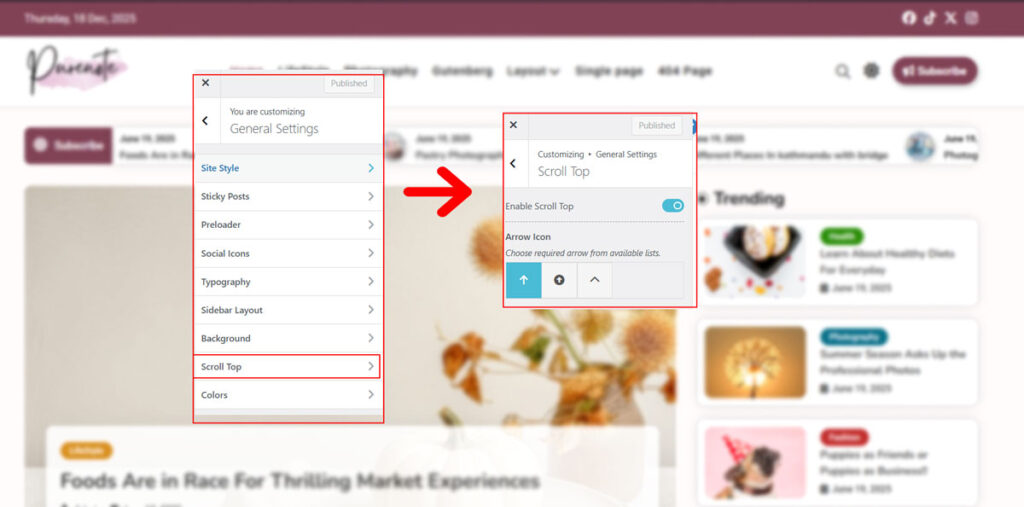
Purenote Pro allows more than just choosing your Scroll Top icons. You can easily customize them as your preferences to bring the best out of them. With the premium version of the theme, you’ll get:
- 12 Arrow Icons
- Alignment Options
- Device Visibility
- Color choosing
- Advanced Designing Features
Revitalize your Scroll Top Icons with advanced customization options
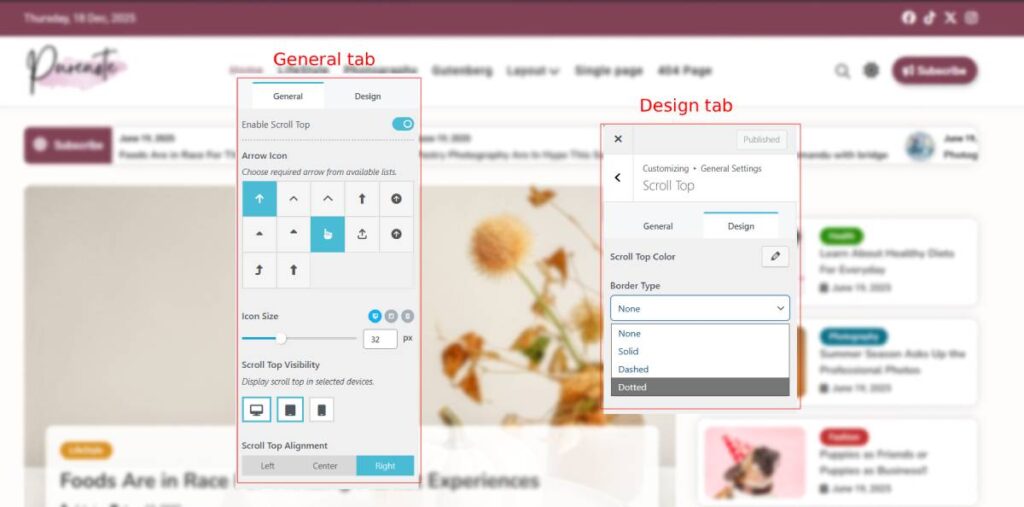
- Go to Scroll Top section in Purenote Pro, then choose your preferred icons from the given 12 different options from the General Tab
- Adjust the size of your icon using the slider or box beside it for precise adjustment
- Choose the Device Visbility from the three small icons beside the ‘icon size’ text. (The blue highlighted on the border of the icons are the devices where Scroll Top will be shown).
- Choose your Scroll Top button’s alignment which will appear on the screen.
Desing Tab will allow you to effectively customize your button
- Go to Design Tab option from the Scroll Top section
- Choose your color by clicking on the ‘pencil like‘ icon beside the text ‘Scroll Top Color’.
- Select your Border Type from the drop-down menu and choose one you prefer.
- At last, save them by clicking on the Publish button.