How to Access News Grid Settings?
Before you configure News Grid Settings, let’s learn how to access the News Grid Settings of the Bottom FullWidth Section. In order to access News Grid Settings,
- First open your WordPress dashboard, navigate to Appearance → Customizer to open your theme customizer
- Then, navigate to FrontPage Settings → Bottom FullWidth
- Click on the flywheel settings icon next to the News Grid panel to expand settings for News Grid
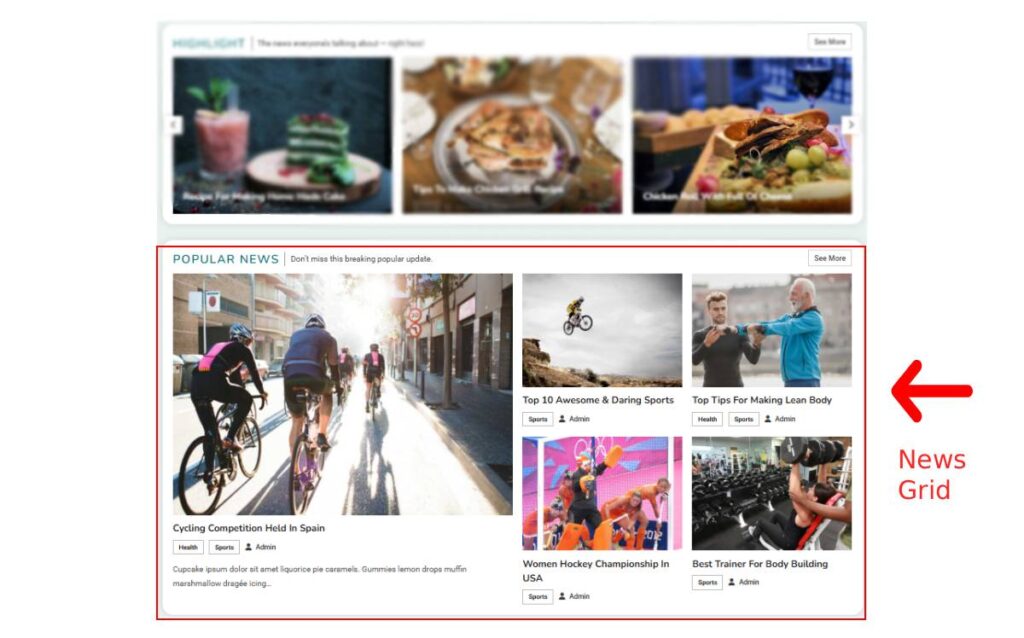
In order to configure News Grid settings,
- Click on the flywheel settings icon next to the News Grid panel to expand settings for News Grid
- After you have expanded the News Grid panel, you can then name your News Block under Block Title and give the grid some description just below it.
- Add your custom text and link to the button in the ‘See More‘ section.
- Click on the ‘Pencil‘ icon beside Block Query to add filters for meta data for the posts that will shown in the grid like Post Category, Order of the post, date filter and number of the post.
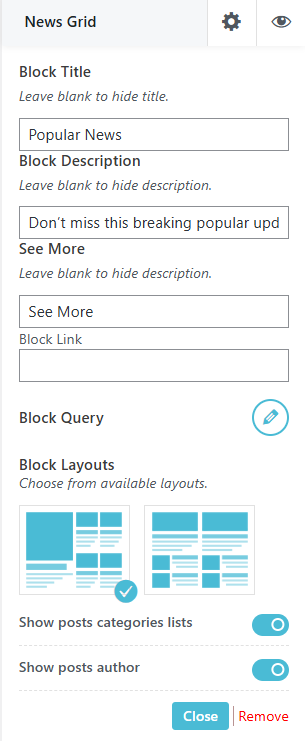
- News Express theme provides you with 2 Block layouts as shown in the image above.
- Select one layout for displaying the News Grid of Bottom FullWidth.
- After you are done with the changes, you can either click on Close button or click on the same flywheel icon
 to collapse the News Grid panel.
 - In case you want to disable the News Grid from the Bottom FullWidth section, click on the eye icon.
- Don’t forget to click on
 button to save and publish the changes.