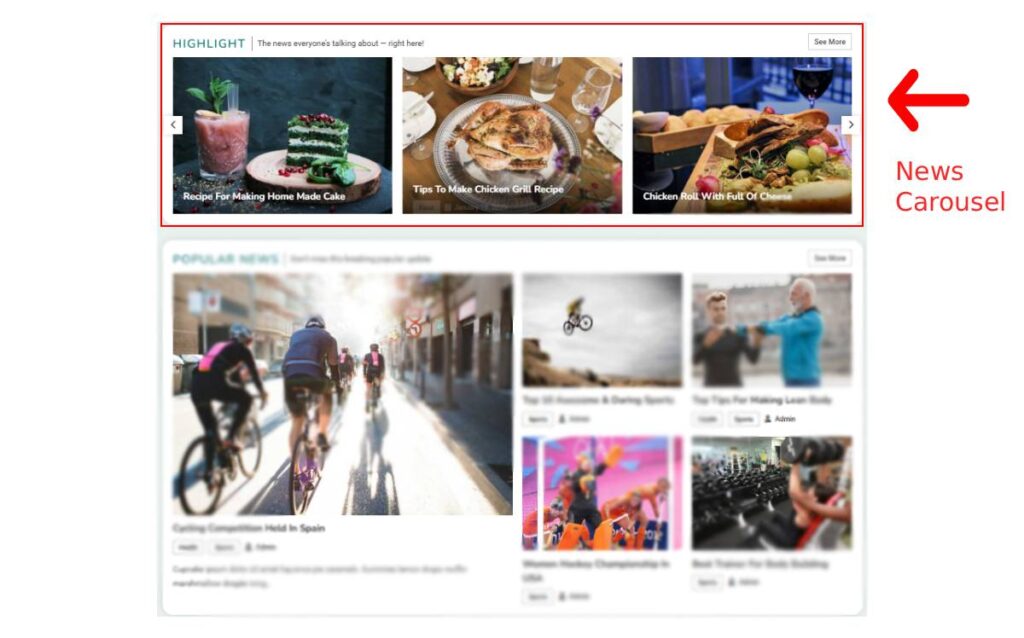
In order to access and configure News Carousel settings of Bottom FullWidth section,
- Open your WordPress dashboard. Navigate to Appearance → Customizer.
- Then navigate to FrontPage settings →Bottom FullWidth.
- Click on the flywheel settings icon next to the News Carousel panel to expand the settings.
- After you have expanded News Carousel panel, you can then name your News Carousel under Block Title and give it a description just below it in Block Description.
- Choose a button text for the ‘See More’ button and add a link to it.
- Block Query allows you to choose categories for that block along with customizing its order, date filters and how many number of posts you want to show.
- Block Layouts: Choose a appropriate layout from given options for your block
- News Express theme provides you with 2 Block layouts as shown in the image.
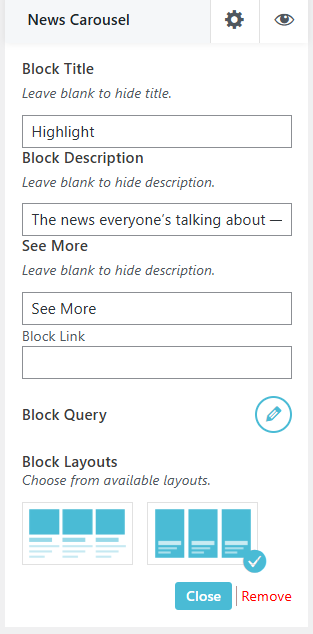
Select one layout for displaying the News Carousel of Bottom FullWidth.
- After you are done with the changes, you can either click on Close button or click on the same flywheel icon
 to collapse the News List panel.
 - In case you want to disable the News Carousel from the Bottom FullWidth section, click on the eye icon.
- Click on the Clone Block in case you want to duplicate the News Carousel Block.
- In case you want to remove a duplicated News Carousel block, click on the Remove button next to the Close button at the bottom of the News Carousel panel.
- Don’t forget to click on
 button to save and publish the changes.